
Please read below on how to install a new software version on your xMB-9640.
IMPORTANT
The xMB-9640 Hyundai Module Balancer supports IMI Boxes and IMI-cables as of 2025. The first released software you can upgrade to that supports this, is Rev O.
You can only update to Rev O Software, if you have upgraded your xMB-9640 Hardware first, or bought the xMB-9640 already on Rev N.
If you do not have xMB-9640 Hardware with IMI based cable setup, you can only update to Rev M.
If you upgrade to any revision after Rev M your xMB will become unusable.
Update via Wi-Fi (OTA)
All xMB-9640 units can be updated using a USB thumb drive.
As of Software Revision O onwards, you can also update your xMB via Wi-Fi (OTA).
When an update is available, you will automatically receive a Message on the home screen guiding you trough the process.
Additionally, in the Settings menu you will find the option Check for Updates to search for any update available.
Update using USB (OTG)
The update process consists of preparing a USB-thumb drive on your PC to copy the software onto, and then using this thumb drive to update your xMB.
If you already have the software on a USB -thumb drive, either provided by your local Midtronics or Hyundai supplier or included in your upgrade kit, you can skip the part “On your PC” and directly got to the part “On the xMB”.
On your PC:
For Revision M (non IMI); follow the setups here below.
Revision O is the release that supports IMI based cables. This software is provided in the Upgrade Kit together with your hardware. Please proceed to the part “On the xMB”. In case you haven’t received the USB drive, please contact Midtronics Support.
- Get a USB-thumb drive and Format it FAT32 (right click -> Format -> Choose FAT 32)
- Go to the Midtronics Software Download Page to download the latest software available.
First, use the credentials here below to login. Please note the password is case sensitive.
User name: hyundaixmb9640
Password: Hyundaixmb9640
In the second screen, provide your company name, dealer code and zip code to continue.
You should now be able to access the software. - Open the executable file. It will ask you for a destination. Choose your USB-drive (e.g. D:\ or E:\ depending on your PC.)
- Wait until the software is 100% extracted and remove the thumb drive from your PC.
On the xMB:
- Power up your xMB-9640 and insert the USB-stick USB-slot in the front of the unit.
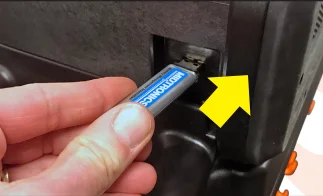
- Make sure the USB drive is inserted. Then, on the xMB-9640, choose Settings, then the Version Information.
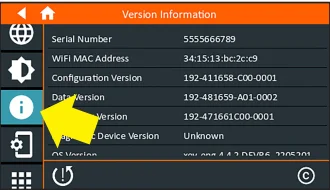
- You choose the USB-icon here to start the update process.
If you do not see the icon, reboot your xMB and start at step 2 again.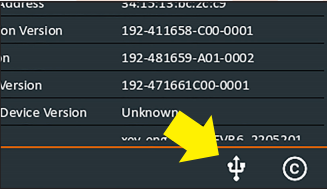
- The Update process will start with downloading the software from the USB-drive to the xMB-9640, followed by the actual Update itself.
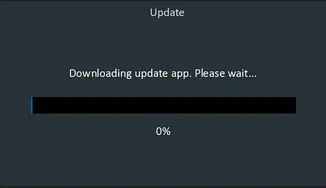
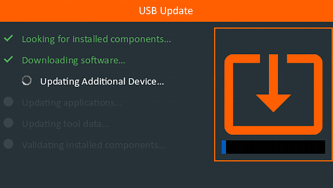
- After the Update is completed, you will be able to use the xMB-9640 again.
- If you install a software revision newer then Rev M, make sure to do a Factory Reset to make sure Wi-Fi and future OTA updates are enabled.
- You can check your software version in the version screen as explained here.