
If you want to service vehicles released in 2025 or later, you will need a new type of cables: IMI Cables, as well as a module balancer that can connect to the IMI-Box and Software Revision O or higher.
All xMB-9640 units received before July 2025 need to upgrade hardware and software to make the xMB-9640 capable of working with the IMI.
Please buy the upgrade Kit and follow the instructions in the Kit, also included here below.
Did you buy your xMB-9640 already including the IMI-box (IMI-2404)?
Please make sure you update to the latest version before starting module balancing.
For more information, please read this article first before proceeding.
How to Upgrade my xMB-9640?
Please follow the instructions document in the kit, you can also view them online here below.
| Kit | Description | Use Instructions |
|---|---|---|
| A1180 | Premium Upgrade Kit incl. All IMI Cables | 167-001171A Hyundai xMB-9640 IMI KIT Upgrade Instruction |
| A1190 | Basic Upgrade Kit incl. only the New IMI Cables | 167-001171C Hyundai xMB-9640 IMI KIT A1071 Upgrade Instructions |
| A1071 | Upgrade Kit without IMI Cables (same upgrade as in A1190) | 167-001171C Hyundai xMB-9640 IMI KIT A1071 Upgrade Instructions |
The process basically includes:
- Upgrade your hardware as included in the instruction sheet and the video here below.
- Upgrade your software (also see the information her below)
Note: The video here shows includes the use of the adapter cable (A1032) that allows you to still use old cables). This Cable is included in A1190 and A1071.
How to update the software?
IMPORTANT: Only update to Software Revision N or higher if you have successfully completed the hardware upgrade. If you were unable to complete the hardware upgrade, updating the software will brick your xMB-9640. You will need to contact Midtronics support and additional charges may apply.
If you have successfully upgraded you xMB-9640 as described in the Instructions document, please proceed with updating the software:
On your PC
- Within your Upgrade Kit you’ll find a USB drive with software for your xMB-9640. Proceed to the part On the xMB.
If you received the software via internet or otherwise and need to get it on a USB stick; follow the steps below first. - get a USB-thumb drive and Format it FAT32 (right click -> Format -> Choose FAT 32)
- Open the executable file. It will ask you for a destination. Choose your USB-drive (e.g. D:\ or E:\ depending on your PC.)
- Wait until the software is 100% extracted and remove the thumb drive from your PC.
On the xMB
- Power up your xMB-9640 and insert the USB-stick USB-slot in the front of the unit.
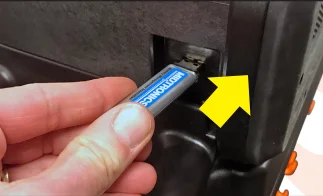
- Make sure you have the USB-drive inserted.
Then, on the xMB-9640, go to Settings, then the Version Information.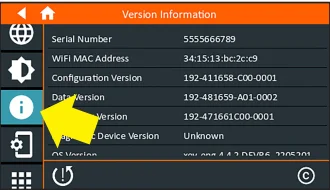
- You choose the USB-icon here to start the update process.
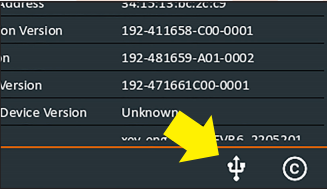
In case you do not see the update, please reboot the xMB-9640 and try again. Make sure to have the USB-stick plugged in before entering the Version information screen. - The Update process will start with downloading the software from the USB-drive to the xMB-9640, followed by the actual Update itself.
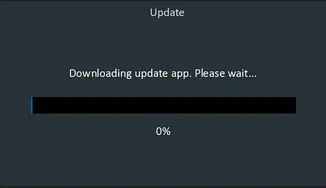
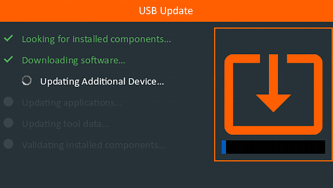
- After the Update is completed, you will be able to use the xMB-9640 again.
Remove the USB-drive and continue. - You can check your software version in the version screen as explained here.
- Make sure to perform a factory reset before using the tool. This will ensure your tool is correctly setup to for the IMI and Wi-Fi related features.
- From now on you can use IMI Cables and all further benefits.
- Make sure your tool is connected to Wi-Fi, so from now on you can update your software over-the-air (OTA).
Do you need additional cables? Please see the vehicle coverage overview here.